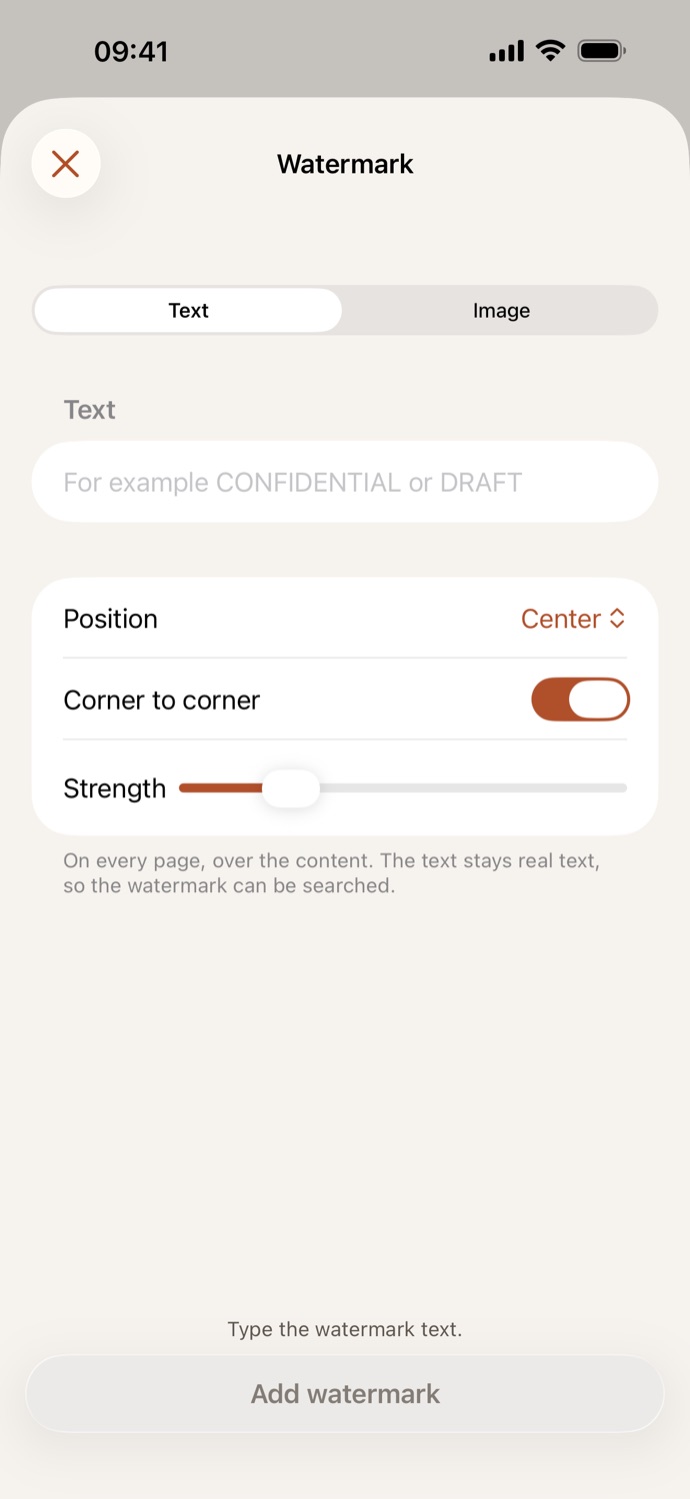
How to add a watermark to a PDF.
Three steps, all on your device.
Pick your PDF
Open Watermark and choose a PDF from Your files in CapsaPDF, or from the Files app. Pick several to mark them all the same way.
Set the watermark
Choose Text and type it, or Image and pick a logo or stamp from Photos. Set the position, corner to corner or straight, and the strength; the preview shows your first page.
Add it
Tap Add watermark. The new PDF is saved in Your files, ready to share, or to sign, protect or compress next.
Every page marked, the way you set it.
- Text or an image, in the center or near a corner or edge, corner to corner or straight, faint or strong.
- Mark a contract DRAFT before it’s signed, or put your logo on an offer you send out.
- A text watermark stays real text, so it can be searched. For an image, a PNG with a transparent background works best.
- Go on from the result: sign it, add a password, or compress it to email.
Good to know
- Works with
- One or more PDFs, from Your files or the Files app
- You get
- A watermarked copy of each; your originals stay as they were
- Batches
- Several files at once, with the same settings
- Works offline
- Yes: nothing is uploaded
Watermarked on your device.
You watermark the files you’re about to send out: drafts, contracts, offers. Online tools upload them before you’ve decided who sees them. CapsaPDF adds the mark on your iPhone or iPad, with no account and no network features, so the file leaves only when you share it. Privacy Policy
Questions.
Are my PDFs uploaded when I add a watermark?
No. CapsaPDF adds the watermark on your iPhone or iPad and has no network features, so nothing is uploaded and it works offline.
Can I use my logo as a watermark?
Yes. Choose Image, pick your logo from Photos and set its size. A PNG with a transparent background works best.
Can I watermark several PDFs at once?
Yes. Pick several PDFs and they all get the same watermark; each gets its own copy.
Can I change where the watermark goes and how strong it is?
Yes. Put it in the center, or at the top or bottom on the left, middle or right. Run it corner to corner or straight, and use Strength to make it fainter or stronger.
What else changes when I add a watermark?
The pages look as before, and their text can still be selected. Links and form fields become part of the page, so fill in a form before you watermark it.
Is adding a watermark free?
Yes. CapsaPDF is free, with every tool included, no ads and no purchases.