1. CapsaPDF
  2. Tools
  3. Redact PDF

Sign and protect

Redact a PDF on your iPhone.

Black out names, account numbers and signatures, and they’re removed from the file, not just covered. You redact the PDF on your iPhone or iPad, never uploaded.

Coming soon to the App Store. Free, for iPhone and iPad.

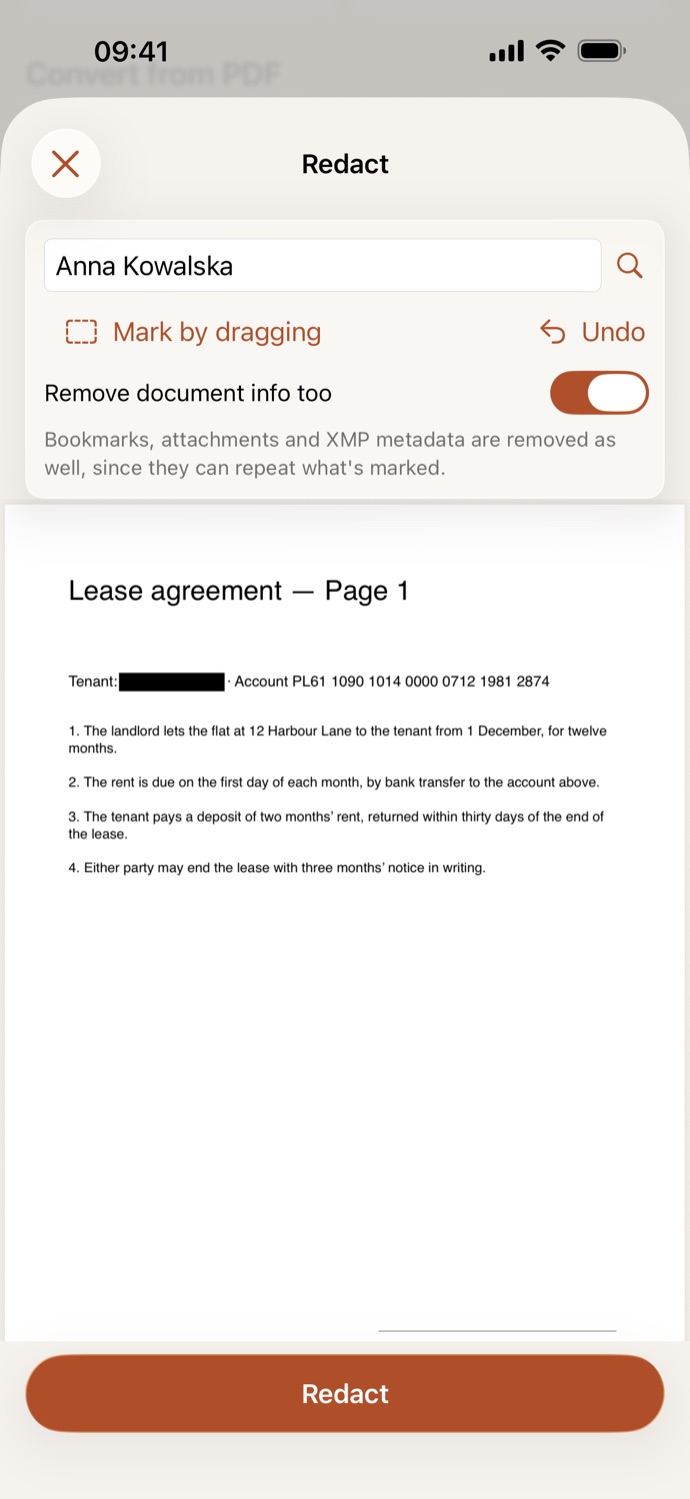
Redact in CapsaPDF: the name Anna Kowalska found and covered with a black box on the page, under the search field, Mark by dragging, Undo, and Remove document info too.

How to redact a PDF.

Three steps, all on your device.

  1. Pick the PDF

    Open Redact and choose a PDF from Your files in CapsaPDF, or from the Files app.

  2. Mark what to remove

    Type a word or number and tap Mark all to mark every place it appears, or turn on Mark by dragging and drag over anything on a page. Undo takes back the last mark.

  3. Redact

    Tap Redact. The redacted copy is saved in Your files, ready to share, or to make searchable, protect or compress next.

What redacting a PDF removes.

Try it on a sample page. What you mark is gone from the file, not covered up.

Lease agreement

Tenant: Anna Kowalska · Account PL61 1090 1014 0000 0712 1981 2874

The tenant, Anna Kowalska, rents the flat at 12 Garden Street for twelve months from 1 November 2026. Rent is paid by the 10th of each month to account PL61 1090 1014 0000 0712 1981 2874.

The deposit equals one month’s rent and is returned within 30 days of the end of the lease.

Page 1

A sample lease. Mark what to remove, then redact it.

Find and mark

Nothing marked yet.

Text you can copy from page 1

Before redacting, the name and the account number can still be copied, searched and pasted.

Gone from the file, not hidden.

  • Each marked page is saved as a picture with the black boxes burned in, so the text under them can’t be copied, searched or recovered. Pages you don’t mark keep their text.
  • Find a name once and every place it appears is marked, with case and accents ignored. Black out a lease’s tenant and account number before you send it on.
  • A scanned page has no text to find; CapsaPDF says so, and you drag over the words instead.
  • Redacted pages have no text left. Make searchable brings back search for what’s still visible; then add a password or compress.

Good to know

Works with
One PDF, from Your files or the Files app
You get
A redacted copy; your original stays as it was
Document info
Removed too, unless you turn it off
Works offline
Yes: nothing is uploaded

Redacted on your device.

You redact a PDF because it holds what others shouldn’t see: names, ID and account numbers, signatures. Sending it to a website to black them out shows them to that website first. CapsaPDF redacts on your iPhone or iPad, with no account and no network features, so the unredacted file never leaves your hands. Privacy Policy

Questions.

Is my PDF uploaded when I redact it?

No. CapsaPDF redacts the file on your iPhone or iPad and has no network features, so nothing is uploaded and it works offline.

Can someone copy or recover the text I blacked out?

No. Each page you mark is saved as a picture with the black boxes burned in, so the text, drawings and comments under them are gone from the file, not hidden.

Why can’t I search the redacted pages?

A redacted page is a picture, so it has no text left. Run Make searchable on the result to search and copy what’s still visible. Pages you didn’t mark keep their text.

Can I redact a scanned PDF?

Yes. Scanned pages have no text to find, so drag over the words instead.

Does it remove the author and other document info?

Yes, unless you turn off Remove document info too, which is on by default. Bookmarks, attachments and XMP metadata are removed either way, since they can repeat what’s marked.

Is redacting a PDF free?

Yes. CapsaPDF is free, with every tool included, no ads and no purchases.