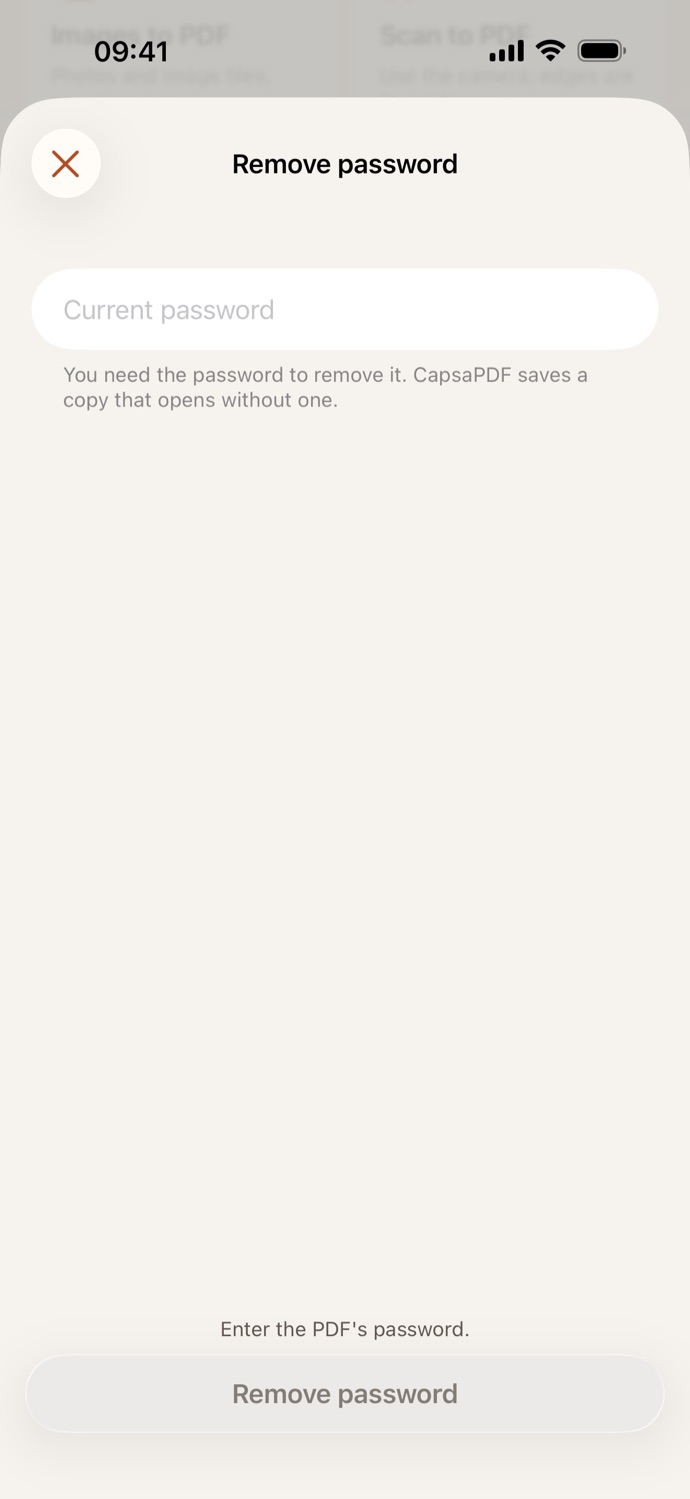
How to remove a password from a PDF.
Three steps, all on your device.
Pick the PDF
Open Remove password and choose the protected PDF from Your files in CapsaPDF, or from the Files app.
Type its password
Enter the PDF’s current password. If it’s wrong, CapsaPDF says so and you can try again. A PDF that opens without a password but stops printing or copying needs none.
Remove password
Tap Remove password. The unlocked copy is saved in Your files, ready to share, or to organize, compress or sign next.
Type the password once, not every time.
- The copy opens without a password, in CapsaPDF and in any other app. The pages stay as they were.
- Unlock a bank statement or a payslip that arrives protected, so you can file it, print it or merge it without typing the password again.
- It only works with the password you know: CapsaPDF doesn’t crack passwords. A PDF without one? CapsaPDF tells you there’s nothing to remove.
- Go on from the result: organize its pages, compress it, make it searchable or sign it.
Good to know
- Works with
- One password-protected PDF, from Your files or the Files app
- You get
- A copy without the password; your original keeps it
- You need
- The password it asks for to open, if any
- Works offline
- Yes: nothing is uploaded
Unlocked on your device.
A PDF usually has a password because of what’s inside: a statement, a payslip, test results. Unlocking it online means handing over the file and its password together. CapsaPDF removes the password on your iPhone or iPad, with no account and no network features, so neither ever leaves your hands. Privacy Policy
Questions.
Is my PDF uploaded when I remove its password?
No. CapsaPDF removes the password on your iPhone or iPad and has no network features, so neither the file nor its password is uploaded, and it works offline.
Can CapsaPDF remove a password I don’t know?
No. If a PDF asks for a password to open, you need that password. CapsaPDF doesn’t crack or recover forgotten passwords.
What happens if I type the wrong password?
CapsaPDF tells you that password didn’t open the file and takes you back to the field to try again. Nothing is saved until the password is right.
Does my original PDF change?
No. CapsaPDF saves a new copy that opens without a password. The original keeps its password.
Can I remove limits on printing or copying?
Yes. If the PDF opens without a password and only stops printing or copying, you don’t need one: the copy CapsaPDF saves doesn’t have those limits.
Is removing a PDF password free?
Yes. CapsaPDF is free, with every tool included, no ads and no purchases.