How to split a PDF.
Three steps, all on your device.
Pick your PDF
Open Split PDF and choose a file from Your files in CapsaPDF, or from the Files app.
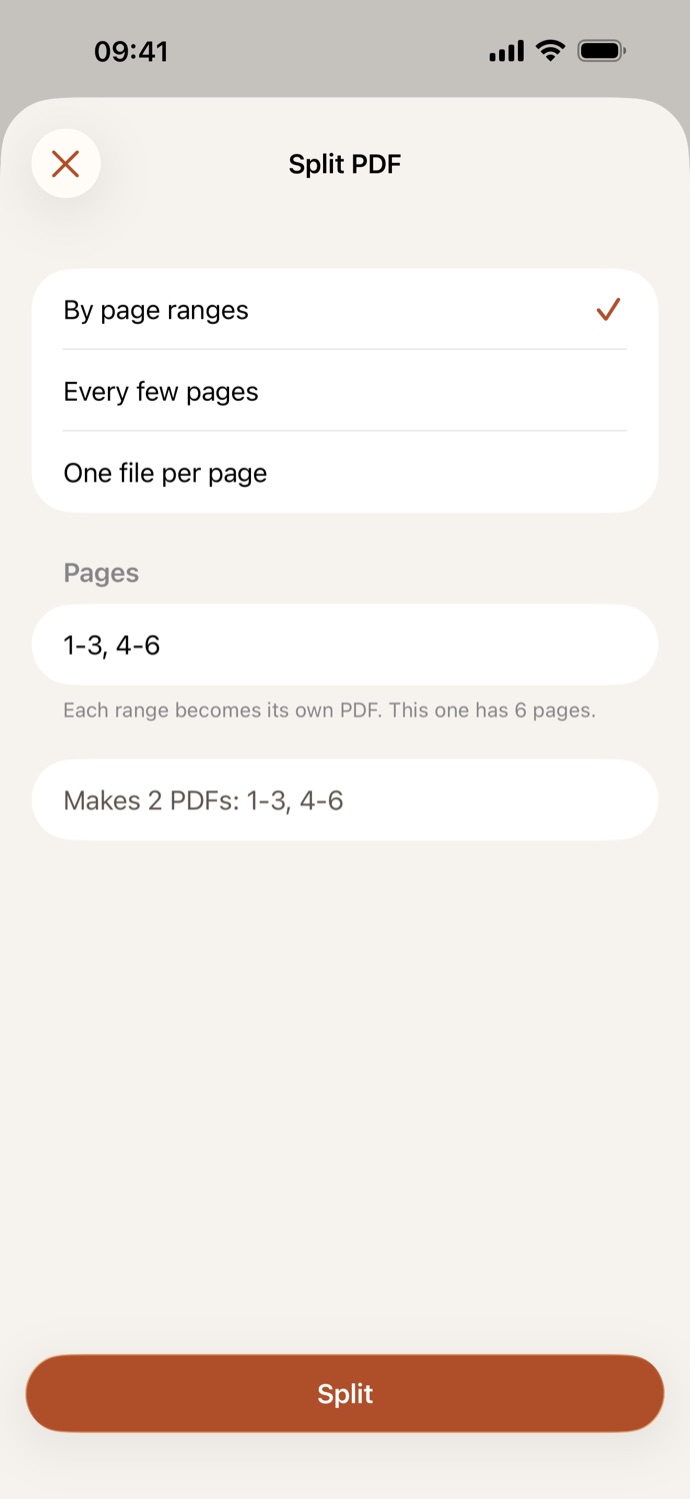
Choose how to split
By page ranges (type them, for example 1-3, 5, 8-10), Every few pages, or One file per page. CapsaPDF shows how many PDFs you’ll get before you start.
Split
Tap Split. The parts are saved in Your files, numbered in order, ready to share, or to compress, number or protect all at once.
One PDF, broken into the parts you need.
- Each range you type becomes its own PDF. Pages are copied as they are, so text stays as it was and links still work.
- Split a scanned stack into separate documents, or a long report into chapters to send one at a time.
- A range typed backwards, like 5-3, is read as 3-5, and a page that isn’t in the PDF is pointed out before you split.
- Go on with all the parts at once: compress them, add page numbers, make them searchable or add a password.
Good to know
- Works with
- One PDF, from Your files or the Files app
- You get
- A new PDF for each part; your original stays as it was
- Ways to split
- By page ranges, every few pages, or one file per page
- Works offline
- Yes: nothing is uploaded
Split on your device.
The PDFs people split are often bundles: a scanned stack of letters, a full set of contracts, a year of statements. CapsaPDF splits them on your iPhone or iPad, with no account and no network features, so none of those pages leave your hands. Privacy Policy
Questions.
Is my PDF uploaded when I split it?
No. CapsaPDF splits the file on your iPhone or iPad and has no network features, so nothing is uploaded and it works offline.
Can I split a PDF into single pages?
Yes. Choose One file per page, and every page becomes its own PDF.
Do the split files lose quality?
No. CapsaPDF copies the pages as they are, without re-rendering them, so text and images stay as they were. Links and bookmarks follow their pages into each part.
Can I split a password-protected PDF?
Yes, if you know the password: CapsaPDF asks for it before you choose how to split. Each part keeps the same password and restrictions.
Is splitting PDFs free?
Yes. CapsaPDF is free, with every tool included, no ads and no purchases.