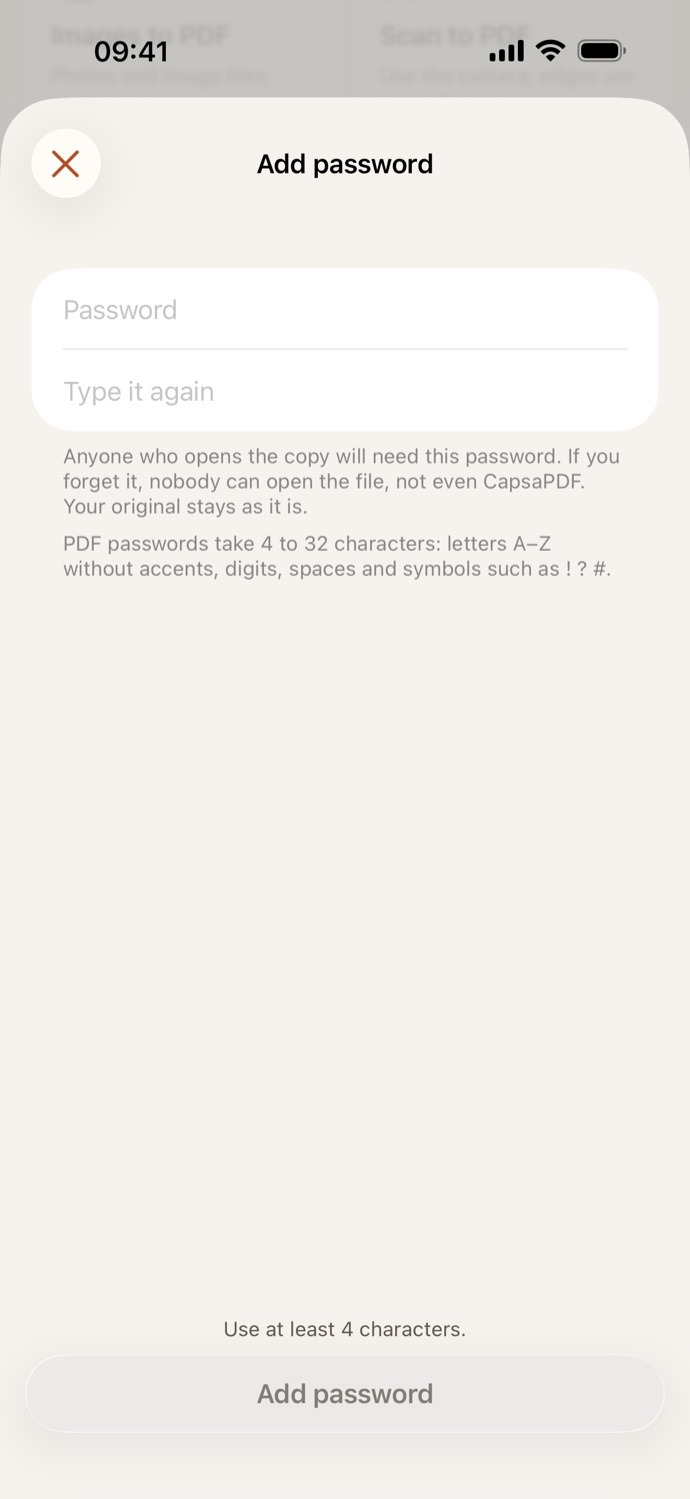
How to password protect a PDF.
Three steps, all on your device.
Pick the PDF
Open Add password and choose one or more PDFs from Your files in CapsaPDF, or from the Files app.
Choose a password
Type a password of 4 to 32 characters, using letters A–Z without accents, digits, spaces and symbols, then type it again to make sure it’s right.
Add password
Tap Add password. The protected copy is saved in Your files, ready to share; your original stays as it was.
A PDF that asks for a password to open.
- Anyone who opens the copy needs the password, in CapsaPDF or any other app. The file is encrypted with AES-128, and the same password also removes it.
- Protect a bank statement, a payslip or medical results before you email them, and send the password another way.
- Several PDFs? Pick them all: each gets its own protected copy, with the same password.
- If you forget the password, nobody can open the copy, not even CapsaPDF, so keep it somewhere safe.
Good to know
- Works with
- One or more PDFs, from Your files or the Files app
- You get
- A protected copy of each; your originals stay as they were
- Batches
- Several files at once, with the same password
- Works offline
- Yes: nothing is uploaded
Protected on your device.
To password protect a PDF online, you’d upload the very file you want to keep private, and the password with it. CapsaPDF adds the password on your iPhone or iPad, with no account and no network features. Privacy Policy
Questions.
Are my PDF and its password uploaded?
No. CapsaPDF adds the password on your iPhone or iPad and has no network features, so nothing is uploaded and it works offline.
What if I forget the password?
Nobody can open the protected copy, not even CapsaPDF. Your original stays as it was, so keep it until you’re sure you have the password.
How long does the password need to be?
4 to 32 characters: letters A–Z without accents, digits, spaces and symbols such as ! ? #. PDF passwords can’t hold accented letters or emoji, so CapsaPDF doesn’t accept them.
Can I remove the password later?
Yes, with Remove password in CapsaPDF, if you know the password. It saves a copy that opens without one.
Can I block only printing or editing?
No. CapsaPDF adds a password to open the PDF. The same password unlocks everything, so whoever can open the file can also remove the password.
Is password protecting PDFs free?
Yes. CapsaPDF is free, with every tool included, no ads and no purchases.