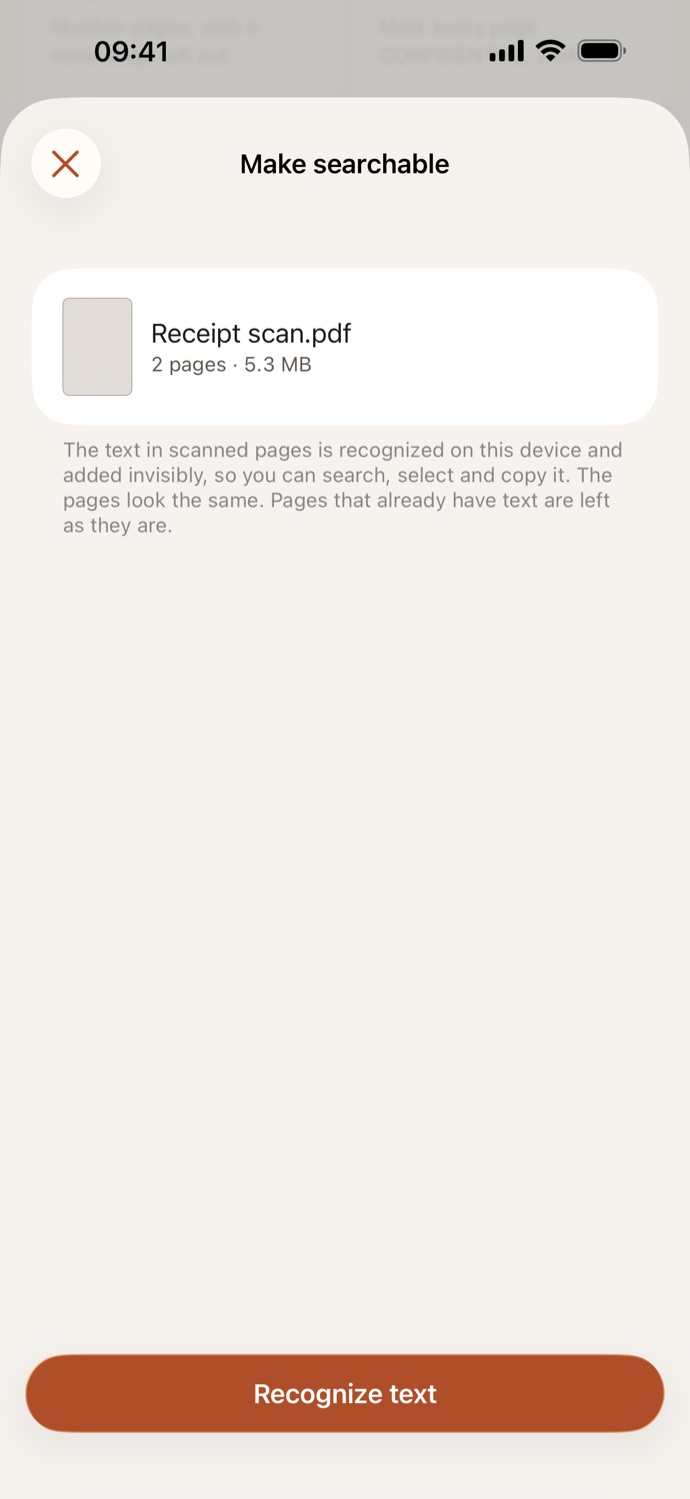
How to OCR a PDF.
Three steps, all on your device.
Pick your PDF
Open Make searchable and choose a scanned PDF from Your files in CapsaPDF, or from the Files app. Pick several to do them all at once.
Check what happens
There’s nothing to set. Text is recognized in the languages your device is set to, and pages that already have text are left as they are.
Recognize text
Tap Recognize text. The searchable copy is saved in Your files, with how many pages got text. Compress it, save its text or sign it next.
Scans you can search and copy from.
- The recognized text is added invisibly over each scanned page: the pages look the same, and the text can be searched, selected, copied and read aloud by VoiceOver.
- Find a number in a scanned contract, or copy a paragraph from a letter you scanned.
- A PDF with both scans and real text? Only the scanned pages are recognized, and if a page has nothing readable, CapsaPDF tells you.
- Go on from the result: compress it, save its text with PDF to text, or sign it.
Good to know
- Works with
- One PDF, or several at once, from Your files or the Files app
- You get
- A searchable copy that looks the same; your original stays as it was
- Languages
- The languages your device is set to, plus Polish and English
- Shortcuts
- A Make PDF Searchable action, for automations
Recognized on your device.
Scans are often the papers that matter most: IDs, contracts, medical letters, tax forms. Online OCR services upload them to read them. CapsaPDF recognizes the text on your iPhone or iPad, with the text recognition built into iOS, so your scans never leave your hands. Privacy Policy
Questions.
Is my PDF uploaded for OCR?
No. The text is recognized on your iPhone or iPad and CapsaPDF has no network features, so nothing is uploaded and it works offline.
Which languages does it recognize?
The languages your iPhone or iPad is set to, plus Polish and English, which it always reads, with Polish letters such as ą, ę and ż. Languages the built-in text recognition can’t read yet, such as Greek, are skipped.
Will my PDF look different?
No. The text is added invisibly, so the pages look and print the same. Pages that already have text are left as they are.
What if no text is found?
CapsaPDF tells you. The pages may be photos, or too blurry to read.
Can I OCR several PDFs at once?
Yes. Pick several files and each gets its own searchable copy.
Is OCR free?
Yes. CapsaPDF is free, with every tool included, no ads and no purchases.