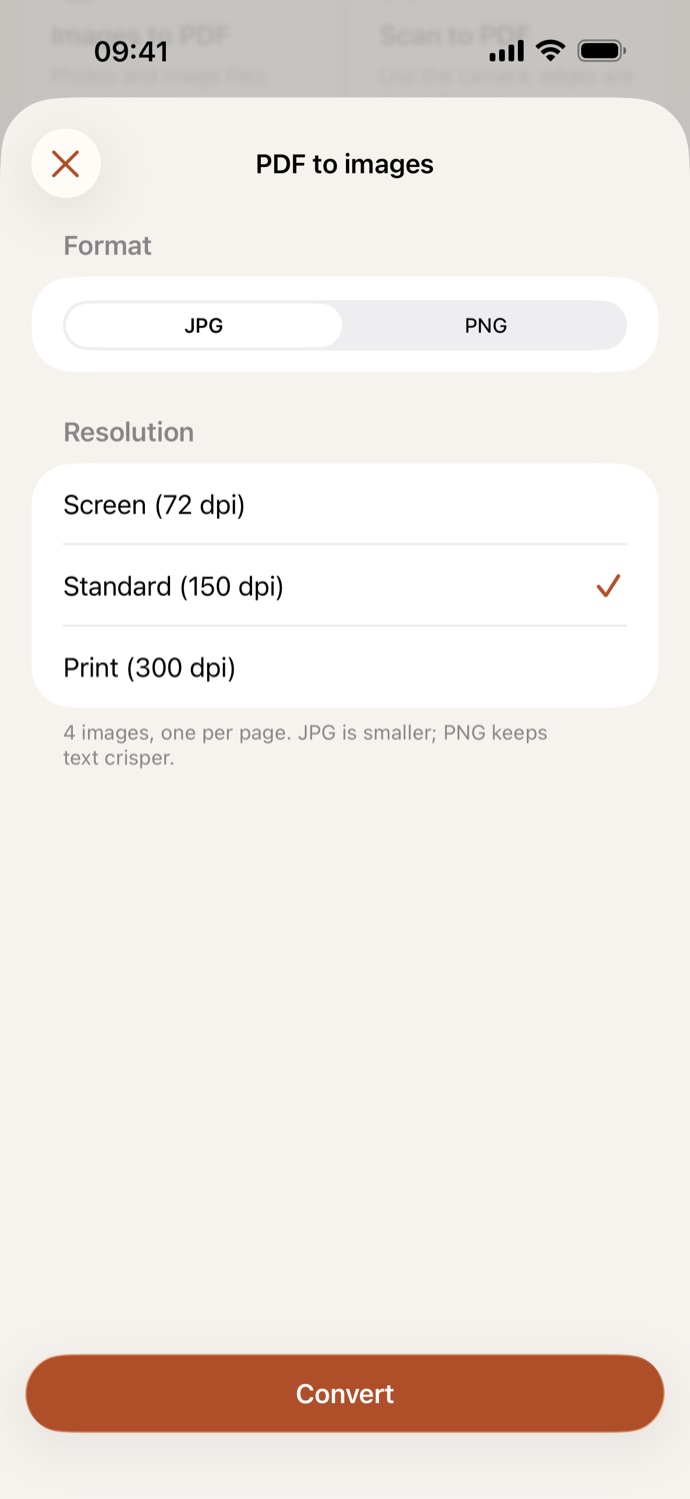
How to convert a PDF to JPG.
Three steps, all on your device.
Choose the PDF
Open PDF to images and pick a PDF from Your files in CapsaPDF, or from the Files app.
Pick format and resolution
Choose JPG or PNG, and Screen (72 dpi), Standard (150 dpi) or Print (300 dpi). JPG at Standard is set to start.
Convert
Tap Convert. You get one image per page: share them all at once, or save them to Photos or Files from the share sheet.
Every page, as a picture.
- One image per page, named after the PDF and numbered in page order.
- JPG is smaller; PNG keeps text crisper. Pick Screen for a message, Print for paper.
- Post a page online, put a slide in a presentation, or send a page to someone who can’t open PDFs.
- A password-protected PDF? CapsaPDF asks for its password first.
Good to know
- Works with
- One PDF, from Your files or the Files app
- You get
- A JPG or PNG for every page; your PDF stays as it was
- Works offline
- Yes: nothing is uploaded
Converted on your device.
Online converters upload your PDF to turn its pages into images. CapsaPDF does it on your iPhone or iPad, with no account and no network features, so your statements, tickets and contracts never leave your hands. Privacy Policy
Questions.
Is my PDF uploaded to convert it to JPG?
No. CapsaPDF converts it on your iPhone or iPad and has no network features, so nothing is uploaded and it works offline.
JPG or PNG: which should I choose?
JPG files are smaller, good for sharing. PNG keeps text and lines crisper, in larger files.
Which resolution should I use?
Screen (72 dpi) for viewing on a phone, Standard (150 dpi) for most uses, and Print (300 dpi) when you’ll print the images or zoom in. A very large page, such as a poster or a plan, may be saved at a lower resolution to fit on your device, and CapsaPDF tells you the dpi it used.
How do I save the images to Photos?
On the result, tap Share all and save them to Photos from the share sheet.
How is this different from Extract images?
PDF to images saves whole pages, text included. Extract images saves the photos and pictures stored inside the PDF, one file each.
Is converting PDF to JPG free?
Yes. CapsaPDF is free, with every tool included, no ads and no purchases.