How to convert JPG to PDF.
Three steps, all on your device.
Choose your images
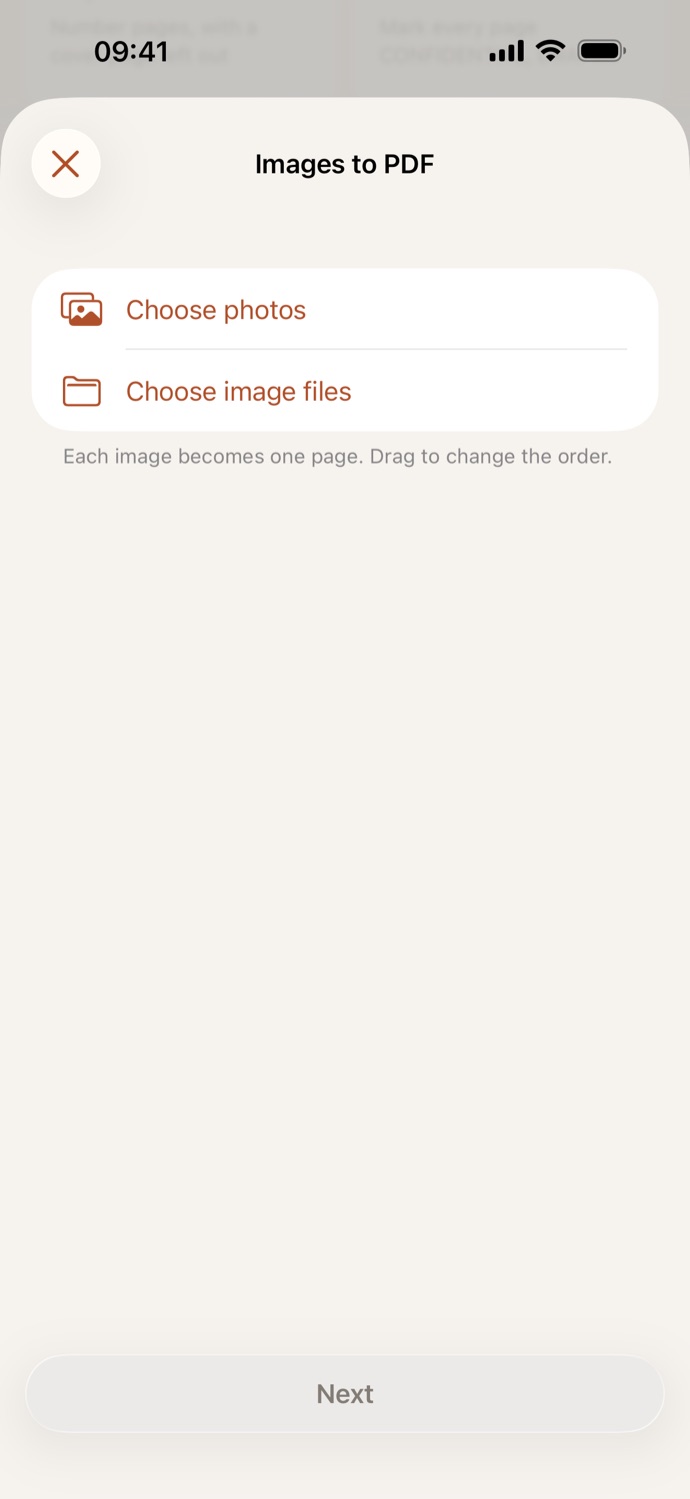
Open Images to PDF and choose photos from your library, or image files from the Files app. Drag them into the order you want.
Set the page
Pick a page size, A4, US Letter or Same as the image, and a margin: None, Small or Large. Landscape images get landscape pages.
Make the PDF
Tap Make PDF. The PDF is saved in Your files, ready to share, or to make searchable, crop, compress, sign or protect next.
Every photo on its own page.
- Each image is fitted to its page and centered, never cut off or stretched, with the margin you choose.
- Make one PDF of receipts for an expense claim, photos of handwritten notes, or a few screenshots to send.
- An image that can’t be read? CapsaPDF tells you which one, so you can remove it and try again.
- Go on from the result: make the text in your photos searchable, crop the pages, or compress the PDF to email.
Good to know
- Works with
- Photos from your library, and image files from Files
- You get
- One PDF, one image per page; your images stay as they were
- Shortcuts
- An Images to PDF action, for automations
- Works offline
- Yes: nothing is uploaded
Converted on your device.
The photos people turn into PDFs are often receipts, IDs and pages of documents. Online converters upload them to their servers. CapsaPDF makes the PDF on your iPhone or iPad, with no account and no network features, so your photos never leave your hands. Privacy Policy
Questions.
Are my photos uploaded when I convert them?
No. CapsaPDF makes the PDF on your iPhone or iPad and has no network features, so nothing is uploaded and it works offline.
Which images can I use?
Photos from your library and image files from the Files app, such as JPG, PNG or HEIC. You can also share photos to CapsaPDF from Photos, Mail or Files and choose Make a PDF: Images to PDF starts with them when you open the app.
Will my photos lose quality?
Each image is saved as a high-quality JPEG, and large photos are scaled down to 3,000 pixels on the long side: sharp enough to print on an A4 page, without a huge file.
Can I search the text in my photos?
Yes. Tap Make searchable on the result, and CapsaPDF recognizes the text on your device, in the languages your iPhone or iPad is set to, along with English and Polish.
Is converting JPG to PDF free?
Yes. CapsaPDF is free, with every tool included, no ads and no purchases.