How to remove metadata from a PDF.
Three steps, all on your device.
Pick your PDFs
Open Remove metadata and choose one PDF or several from Your files in CapsaPDF, or from the Files app.
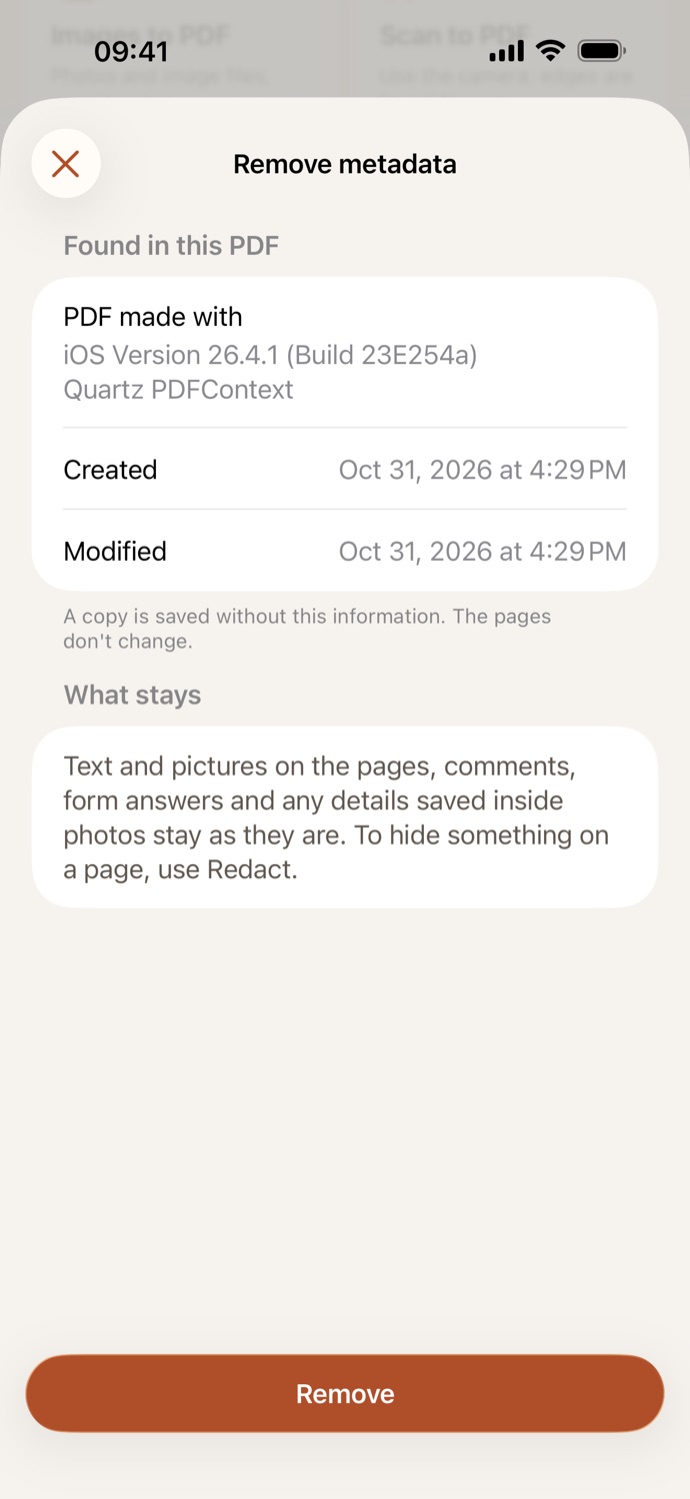
See what’s in them
CapsaPDF lists the document info it found: title, author, the apps the PDF was made with, and when it was created and modified, whatever the file has, plus the names on comments.
Remove
Tap Remove. A clean copy is saved in Your files, ready to share, or to protect with a password or compress next.
Send the PDF, not your name in it.
- Author, title, subject, keywords, the apps and dates the original recorded, XMP metadata, and the names and dates on comments are left out of the copy. It gets no app name or dates of its own, and the pages don’t change.
- Clean a CV, a contract draft or a report before it goes outside your company, so your name and your software don’t travel with it.
- A PDF with no document info? CapsaPDF says so and still makes a clean copy.
- Go on from the result: add a password or compress it to email. Names on the pages themselves need Redact.
Good to know
- Works with
- One PDF or several, from Your files or the Files app
- You get
- A clean copy of each; your originals stay as they were
- Batches
- Several files at once, one clean copy each
- Works offline
- Yes: nothing is uploaded
Cleaned on your device.
You remove metadata because you’d rather a file didn’t say who made it. Uploading it to a website to do that tells a stranger everything at once. CapsaPDF cleans your PDFs on your iPhone or iPad, with no account and no network features, so the files and what’s in them never leave your hands. Privacy Policy
Questions.
Are my PDFs uploaded when I remove their metadata?
No. CapsaPDF cleans the files on your iPhone or iPad and has no network features, so nothing is uploaded and it works offline.
What metadata does CapsaPDF remove?
The document info: author, title, subject, keywords, the apps the PDF was made with and its dates, plus XMP metadata and the names and dates on comments. CapsaPDF shows what it found before you remove it, and the copy gets no app name or dates of its own.
Does it remove names written on the pages?
No. Text and pictures on the pages, what comments say, form answers and details saved inside photos stay as they are. To remove a name or a number from the pages themselves, use Redact.
Can I remove metadata from several PDFs at once?
Yes. Pick several PDFs and CapsaPDF saves a clean copy of each.
Is removing PDF metadata free?
Yes. CapsaPDF is free, with every tool included, no ads and no purchases.