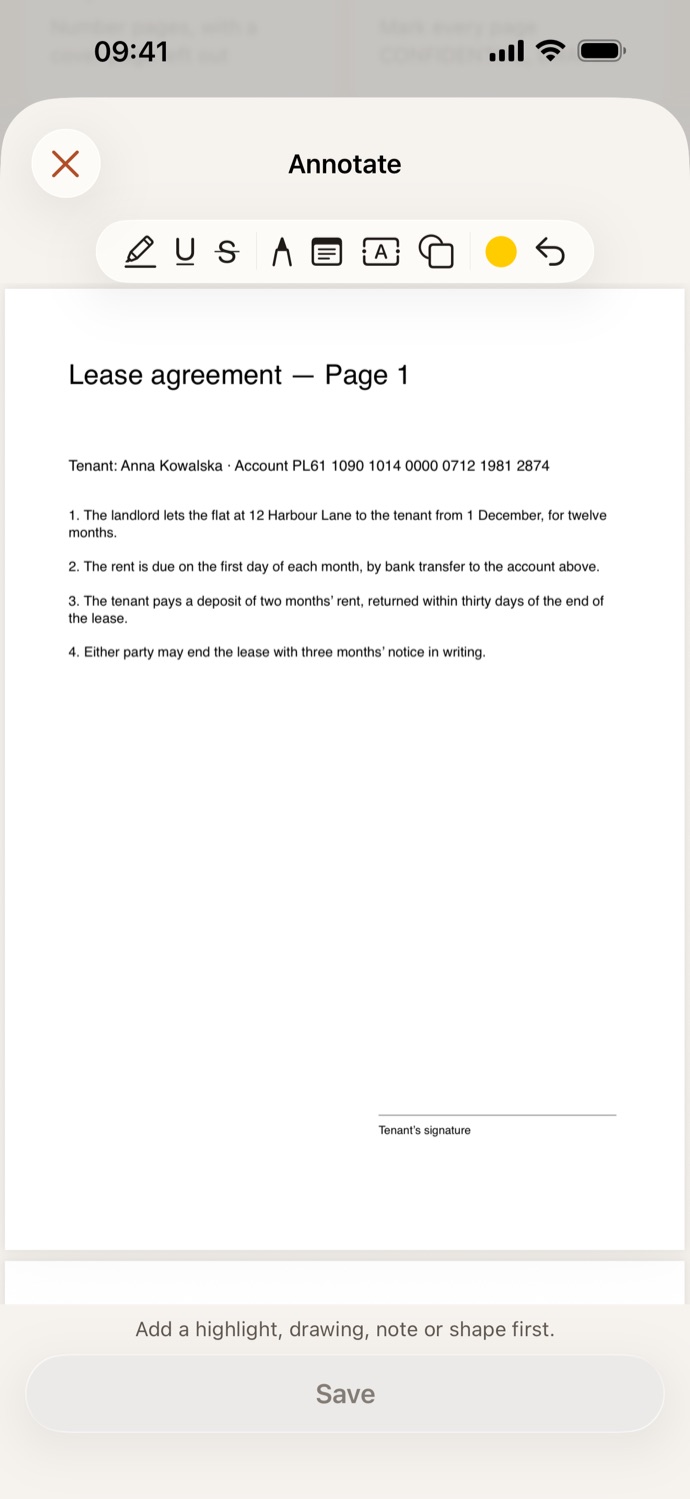
How to annotate a PDF.
Three steps, all on your device.
Pick your PDF
Open Annotate and choose a PDF from Your files in CapsaPDF, or from the Files app. It opens with the tools above the page.
Mark it up
Select text to highlight, underline or strike it through. Draw with the pen, tap to place a note or a text box, or drag out a rectangle, oval or line. Undo takes back the last step.
Save
Tap Save. The annotated PDF is saved in Your files, ready to share, or to flatten, protect or compress next.
Your notes, on the page.
- Highlight, underline or strike through text, draw freehand, and add notes, text boxes and shapes, in yellow, red, blue, green or black.
- Mark up a contract before you send it back, or highlight what matters in a report.
- A scan with no text? Use Make searchable first to highlight its words; drawing, notes and shapes work on any page.
- Marks are saved as standard PDF annotations, so other PDF apps can show them. A text box on a turned page is drawn into the page, upright. Flatten makes the marks part of the page.
Good to know
- Works with
- One PDF, from Your files or the Files app
- You get
- An annotated copy; your original stays as it was
- Works offline
- Yes: nothing is uploaded
Annotated on your device.
The PDFs people mark up are contracts to check, reports to review and notes for class, often with comments meant for one reader. CapsaPDF opens them and saves your marks on your iPhone or iPad, with no account and no network features. Privacy Policy
Questions.
Are my PDFs uploaded when I annotate them?
No. CapsaPDF opens and saves the PDF on your iPhone or iPad and has no network features, so nothing is uploaded and it works offline.
Will other apps show my annotations?
Yes. Every mark is saved as a standard PDF annotation, so other PDF apps can show it, and edit or remove it. The one exception is a text box on a turned page: it’s drawn into the page as text, so it reads upright and stays searchable.
How do I make my annotations permanent?
Run Flatten on the annotated PDF. The marks become part of the page, so they print as shown and can’t be changed.
Can I highlight text in a scanned PDF?
Highlighting works on text you can select, and a scan has none until you use Make searchable on it. Drawing, notes and shapes work on any page.
Can I undo a mark?
Yes. Undo takes back the last step, one at a time, before you save.
Is annotating PDFs free?
Yes. CapsaPDF is free, with every tool included, no ads and no purchases.