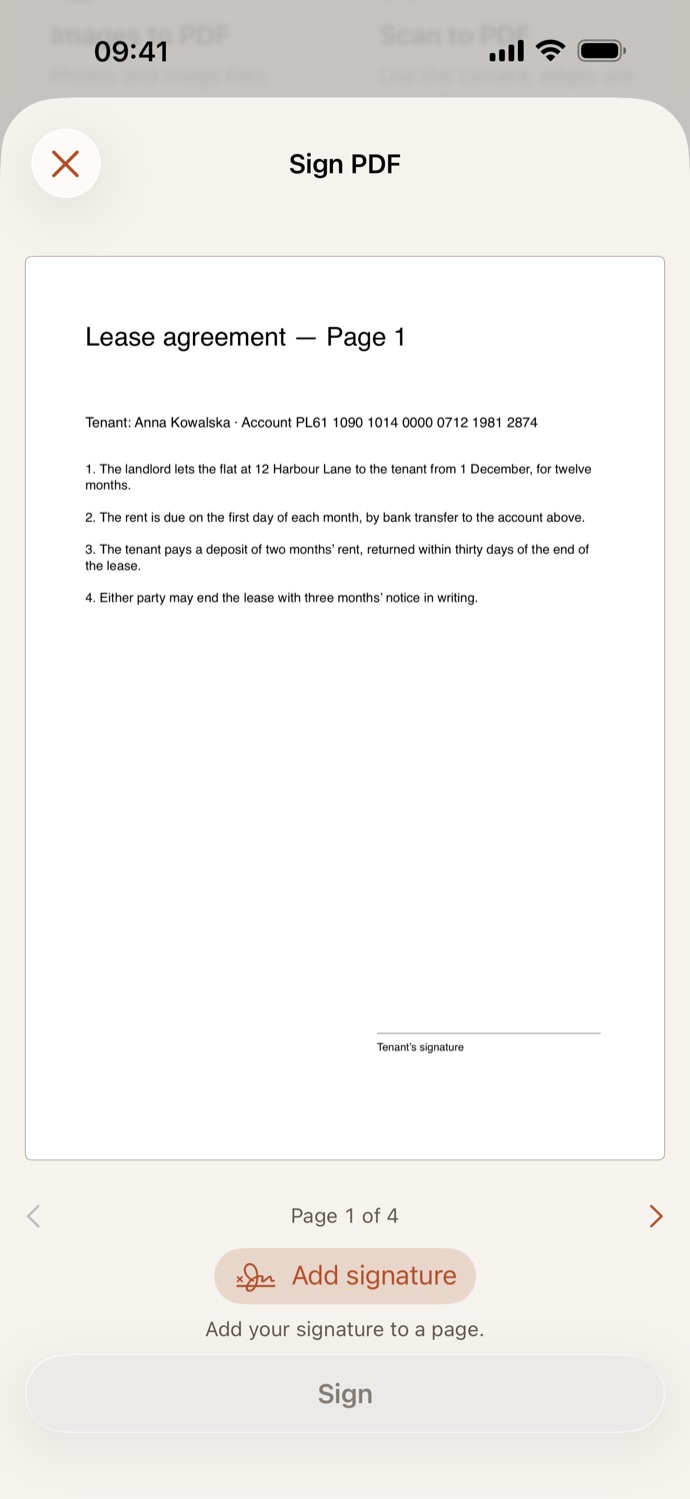
How to sign a PDF.
Three steps, all on your device.
Pick the PDF
Open Sign PDF and choose a file from Your files in CapsaPDF, or from the Files app.
Add your signature
Tap Add signature, then draw it with a finger or Apple Pencil, type your name, or choose a photo of it. Drag it into place and pull its corner to resize it.
Sign
Tap Sign. The signed copy is saved in Your files, ready to share, or to protect, compress or remove its metadata next.
Your signature, right where it goes.
- Sign as many pages as you need: page through the PDF and add a signature wherever one goes.
- Sign a lease, a consent form or a delivery note and send it straight back, without printing and scanning.
- Leave Save for next time on and your signature waits under Saved; touch and hold it to delete it.
- The signature becomes part of the page, so it can’t be moved or lifted off in another app.
Good to know
- Works with
- One PDF, from Your files or the Files app
- You get
- A signed copy; your original stays as it was
- Saved signatures
- Kept in the app, on your device
- Works offline
- Yes: nothing is uploaded
Signed on your device.
Signing online means uploading your signature along with the contract you’re signing. CapsaPDF signs on your iPhone or iPad, with no account and no network features, and keeps saved signatures in the app, on your device. Privacy Policy
Questions.
Is my signature uploaded?
No. CapsaPDF signs the PDF on your iPhone or iPad and has no network features. Your signature and the document stay on your device, and it works offline.
What kind of signature does CapsaPDF add?
A visible signature on the page: the signature you drew, typed or photographed, as an image, like signing a printout. It isn’t a certificate-based digital signature.
Can I sign more than one page?
Yes. Page through the PDF and tap Add signature on each page that needs one.
Can I reuse my signature?
Yes. With Save for next time on, your signature is kept in the app and shown under Saved the next time you sign. Touch and hold a saved signature to delete it.
What happens to form fields on a signed page?
They become part of the page along with the signature, so they can’t be changed afterwards. Fill in the form before you sign it.
Is signing PDFs free?
Yes. CapsaPDF is free, with every tool included, no ads and no purchases.