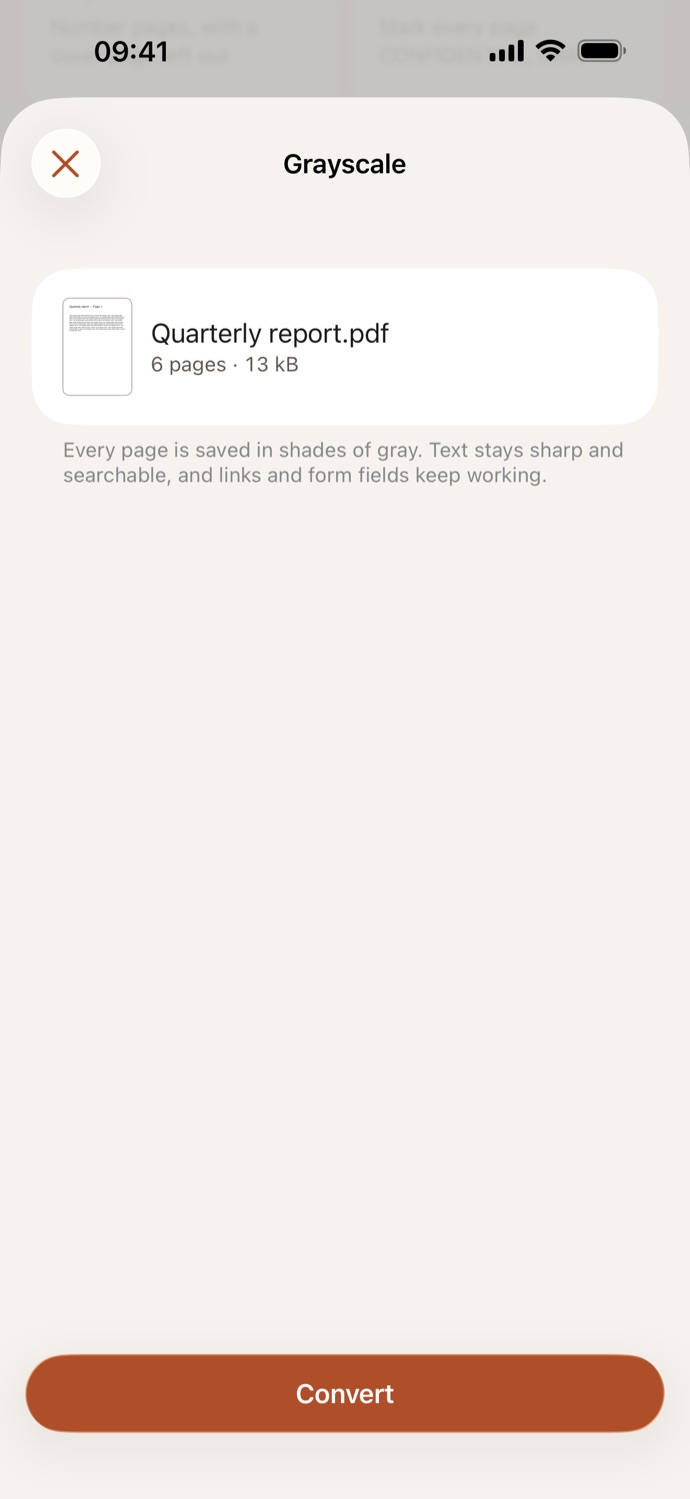
How to convert a PDF to grayscale.
Three steps, all on your device.
Pick your PDF
Open Grayscale and choose a file from Your files in CapsaPDF, or from the Files app. Pick several to convert them all at once.
Check what happens
There’s nothing to set: every page turns gray. CapsaPDF shows the file and what it will do.
Convert
Tap Convert. The grayscale copy is saved in Your files, ready to print, share, compress or protect.
Shades of gray, text still sharp.
- Every page goes gray without being turned into a picture: text stays sharp, and you can still select and search it.
- See how a color PDF will print in black and white, or hand in a document that has to be grayscale.
- Links and form fields keep working in the gray copy.
- Go on from the result: compress it to send, or add a password.
Good to know
- Works with
- One PDF, or several at once, from Your files or the Files app
- You get
- A copy with every page in grayscale; your original stays as it was
- Batches
- Several files at once; each gets its own copy
- Works offline
- Yes: nothing is uploaded
Converted on your device.
The PDFs you print in black and white are often forms, statements and letters. Online converters upload them first; CapsaPDF turns them gray on your iPhone or iPad, with no account and no network features, so they never leave your hands. Privacy Policy
Questions.
Is my PDF uploaded when I convert it to grayscale?
No. CapsaPDF converts the file on your iPhone or iPad and has no network features, so nothing is uploaded and it works offline.
Can I still search the text?
Yes. Only the color is taken out; the pages aren’t turned into pictures, so text stays sharp and you can still search, select and copy it.
Does it change my original PDF?
No. CapsaPDF saves a grayscale copy in Your files and leaves the original as it was.
Can I convert several PDFs at once?
Yes. Pick several files and each gets its own grayscale copy.
Is converting a PDF to grayscale free?
Yes. CapsaPDF is free, with every tool included, no ads and no purchases.